
Are you ready to dive into the limitless world of creativity and adventure with Roblox on your PC? Whether you’re a seasoned gamer or just starting, the process of installing Roblox on your computer is surprisingly straightforward. In this guide, we’ll walk you through every step to ensure you’re set up and ready to explore virtual worlds in no time.
Table of Contents
Introduction: Entering the World of Roblox
In the realm of online gaming, few platforms offer as versatile and engaging an experience as Roblox. Famous for its user-generated games and experiences, Roblox has developed a massive following of players of all ages. However, understanding how to get started can be daunting for a newcomer. Fear not! This guide will break down the installation process into manageable steps, ensuring you’re equipped to join millions of other gamers in this dynamic virtual universe.
Checking System Requirements
Before diving into the installation, it’s important to ensure your PC meets the necessary requirements to run Roblox smoothly.
Minimum System Requirements
Roblox doesn’t demand high-end specifications, but it’s crucial to check whether your PC can handle it:
- Operating System: Windows 7, Windows 8/8.1, or Windows 10/11.
- Processor: A recent processor with at least 1.6 GHz clock speed.
- RAM: A minimum of 1 GB.
- Graphics Card: DirectX 9 minimum with Shader Model 2.0 support.
- Internet: A minimum of a 4-8 MB/s connection.
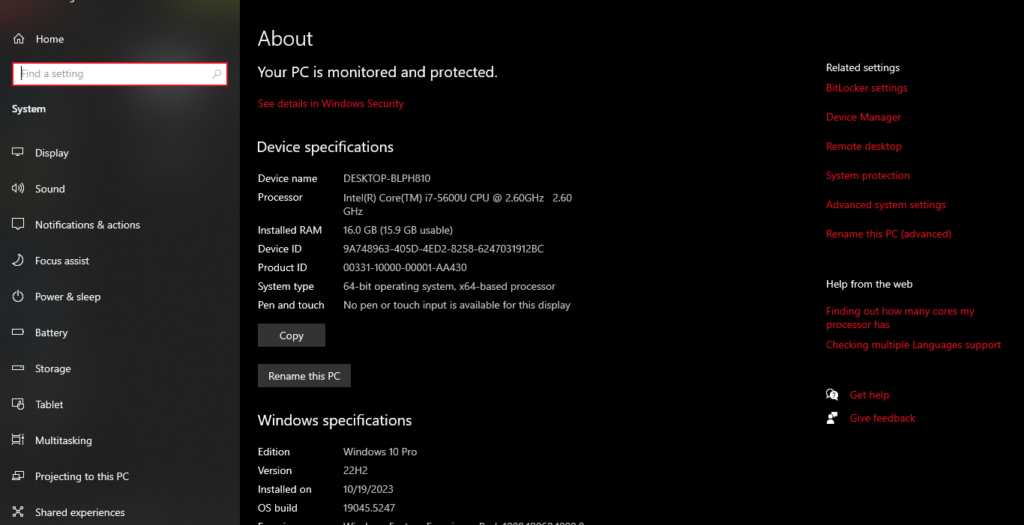
How to Check Your PC’s Specs
If you’re unsure of your system specifications:
- Open the Start Menu, type in “System Information,” and press Enter.
- Review the summaries for processor, RAM, and operating system under the main window.
Tip: Roblox runs well on most modern PCs, but ensuring your system is up-to-date can improve performance significantly.
Downloading and Installing Roblox
With your system prepared, downloading and installing Roblox is a breeze.
Step-by-Step Guide to Installation
- Navigate to the Roblox Website: Open your preferred web browser and go to Roblox.com.
- Create an Account or Log In: If you’re new to Roblox, click “Sign Up” to create an account by entering your birth date, desired username, and password. If you already have an account, simply log in.
- Explore and Choose a Game: Once logged in, browse through the catalog of games on the home page. Click on a game icon that piques your interest.
- Install Roblox Player: After selecting a game, click the Play button. This will prompt a normal dialogue for Roblox Player Download.
- Run the Installation File: Open the downloaded file and follow the on-screen instructions to complete installation. It’s often as simple as clicking “Next” and “Finish.”
Note: A stable internet connection ensures a smooth installation process without interruptions.
Troubleshooting Common Installation Issues
Occasionally, you might encounter hurdles during installation. Here’s how to tackle them:
Connection Problems
- Solution: Ensure your internet connection is active and restart your router if necessary. Check Roblox server status on relevant forums or websites.
Installation Stalls or Errors
- Solution: Close your browser and retry the installation. Consider clearing your browser cache or trying a different web browser.
Pro Tip: Regularly updating your browser and compatible plugins minimizes potential installation issues.
Getting Started with Roblox Games
Once you’ve installed Roblox, the real fun begins—exploring and creating!
Starting Your First Game
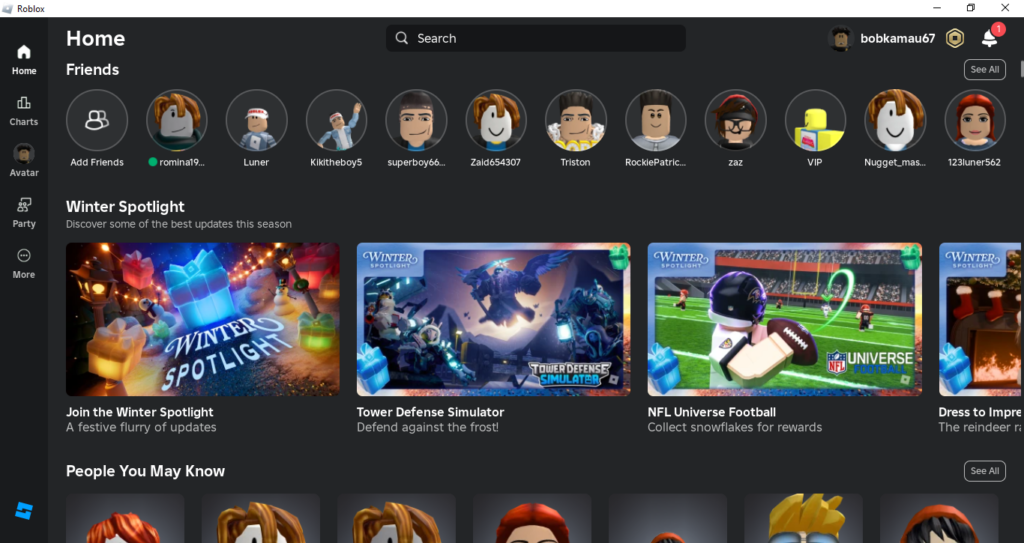
- Relog into Roblox.com.
- Choose a game and click Play.
- Customize your character and start exploring!
Exploring Different Game Genres
Roblox provides an extensive array of genres:
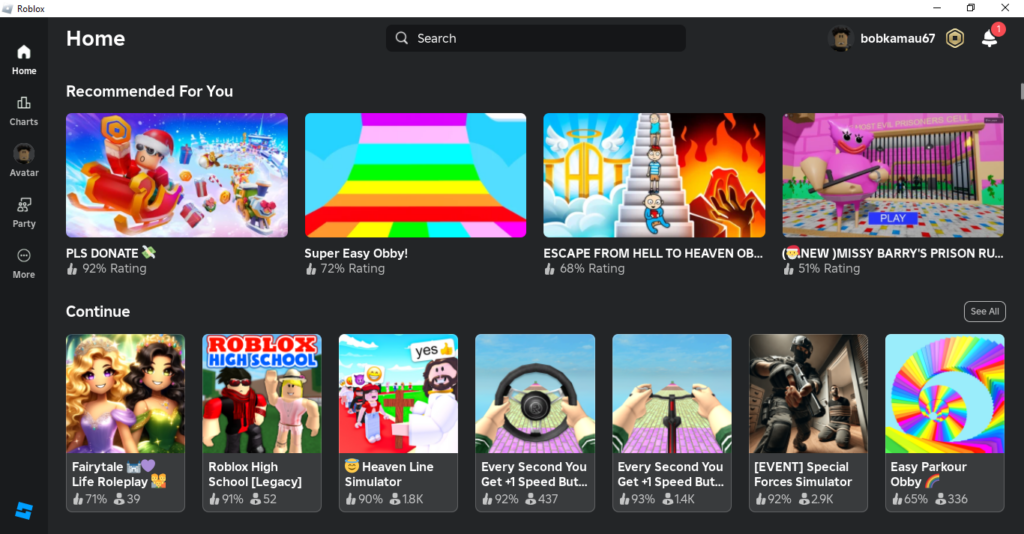
- Adventure: Embark on quests and explore vast worlds.
- Simulation: Manage resources and build your empire.
- Role-Playing: Immerse in character-driven stories.
Explore: Try different games to find what excites you most!
Conclusion
Installing Roblox on your PC is your ticket to a world teeming with creativity and endless fun. With this guide, you are ready to navigate the installation effortlessly and start playing an expansive variety of games Roblox offers. So, what are you waiting for? Dive into the adventure and bring your creativity to life!
Share your journey with friends and join a Roblox community to expand your gaming experience.
For more tips and community discussions, consider exploring Roblox Developers Forum or related gaming communities on social platforms for a richer experience. If you need a step-by-step guide to build your gaming worlds and customizing Roblox then this guide is for you. Happy gaming!